Start with one channel and one time
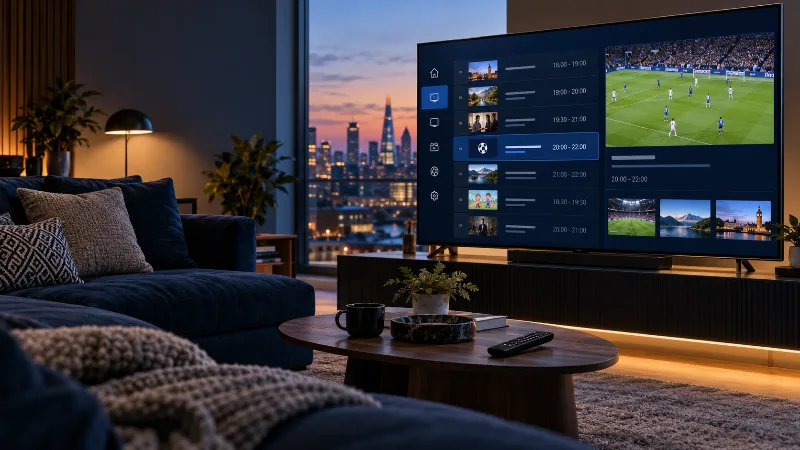
Open a familiar channel and check whether it plays. Then look at its guide and compare a second channel. Record whether programme titles are absent, loading indefinitely, or shifted by a consistent amount. A working stream with missing programme titles is a different problem from a login that cannot load any channels.
Write down the time and your device’s time zone. If you contact support later, these details help identify the relevant listing. Changing several settings before recording the original problem makes it harder to tell what helped.
Check automatic time before adding an offset
Look at the device’s date, time and time-zone settings. In the UK, local time changes between GMT and British Summer Time. A fixed manual one-hour offset can appear to fix the guide temporarily and then become wrong after a clock change.
If every channel appears equally shifted, start with the device clock and the player’s guide settings. If only one channel differs, record that channel rather than shifting the entire guide. Menu names vary between players, so use your app’s current instructions.
Let the guide import and confirm its source
A large guide can take time to import, especially on an older television or a weak connection. Allow the initial update to finish. Check whether the player reports a guide update error, an unavailable source or simply no listings for the channel.
Some activations supply guide information through the selected account method; others use a separate EPG URL. Ask which method applies to your account rather than pasting a random public guide over the existing setup. A new guide must also match the channels’ identifiers; a URL that loads is not proof its entries belong to your channel list.
A guide is not a catch-up guarantee
Programme titles for previous days do not prove those programmes can be replayed. Catch-up needs support from the source and player, and the available history can vary by channel. Test a supported item instead of assuming a seven-day archive exists everywhere.
Before clearing app data, preserve your account details and any settings you need. Start with a guide refresh and connection checks; reinstalling the player can remove setup information without fixing missing source data.
What to send support
These checks narrow down the problem without exposing your account. If video also pauses or fails, use the connection checklist to investigate that separately.
- Device model, player name and version.
- Exact channel name and whether its video plays.
- One example of a wrong programme time, including your time zone.
- Whether all listings or only a few channels are affected.
- The guide-refresh result and any error message, with credentials removed.
Your next step
Use what you learned on your own device, then choose a setup or plan that answers your needs.